AI Dance Generator: From Still Photo to Moving Reel
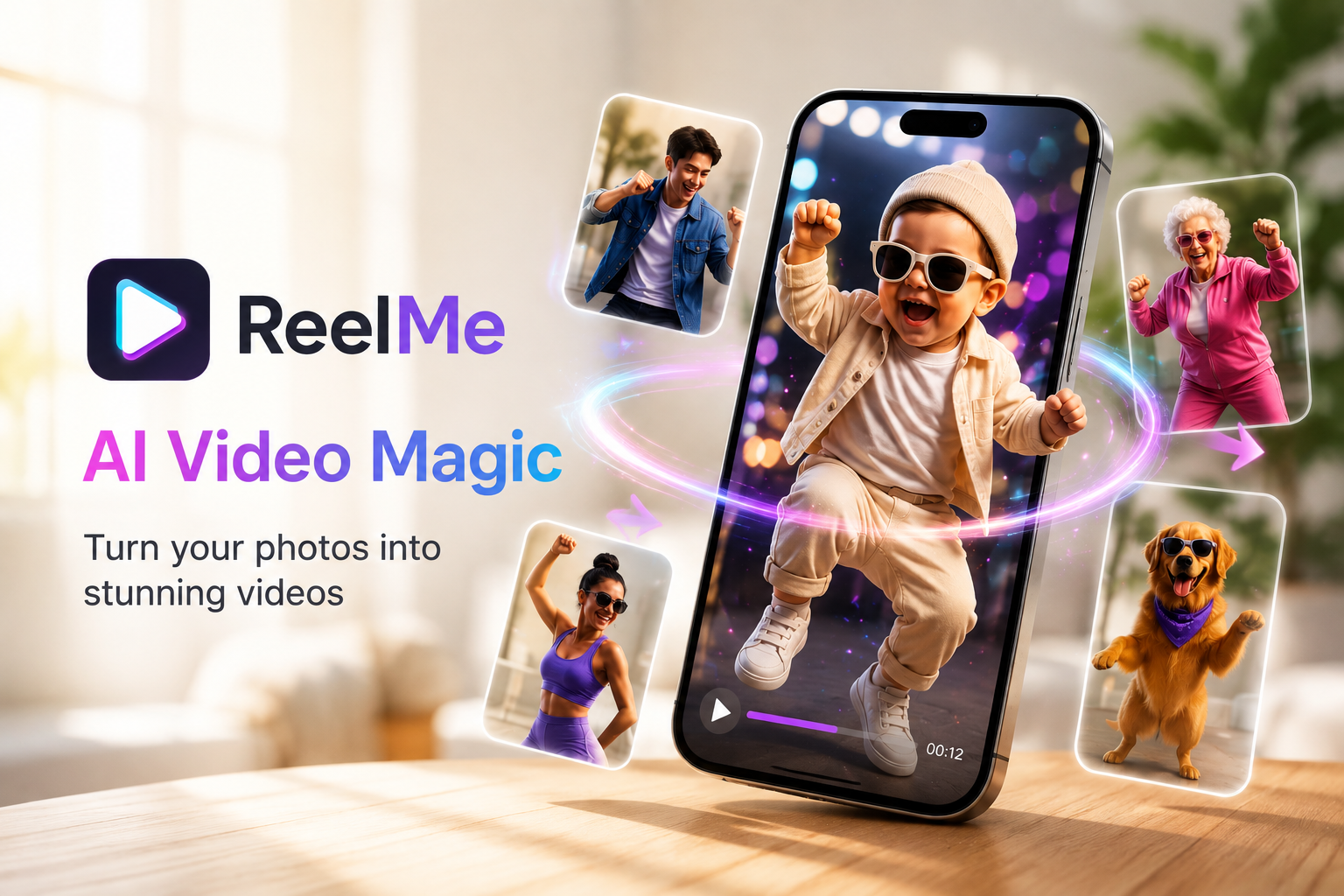
An AI dance generator turns a single still photo into a short video where your subject appears to move and dance. Most people get stuck choosing the right photo or setting, and the result looks stiff or glitchy. You upload a clear, front-facing photo to an app like ReelMe AI. The app maps your subject's body, picks a dance motion, and renders a short video clip. The whole process takes under two minutes. You export the video directly to your camera roll, ready to post. This guide walks you through every step, from picking the right photo to sharing a reel that actually gets views.
What an AI Dance Generator Actually Does
An AI dance generator reads the body in a still photo the way a choreographer reads a dancer - it finds the shoulders, hips, and limbs, then maps movement onto those points. The result is a short video where your subject appears to dance, built entirely from one image. No video footage required.
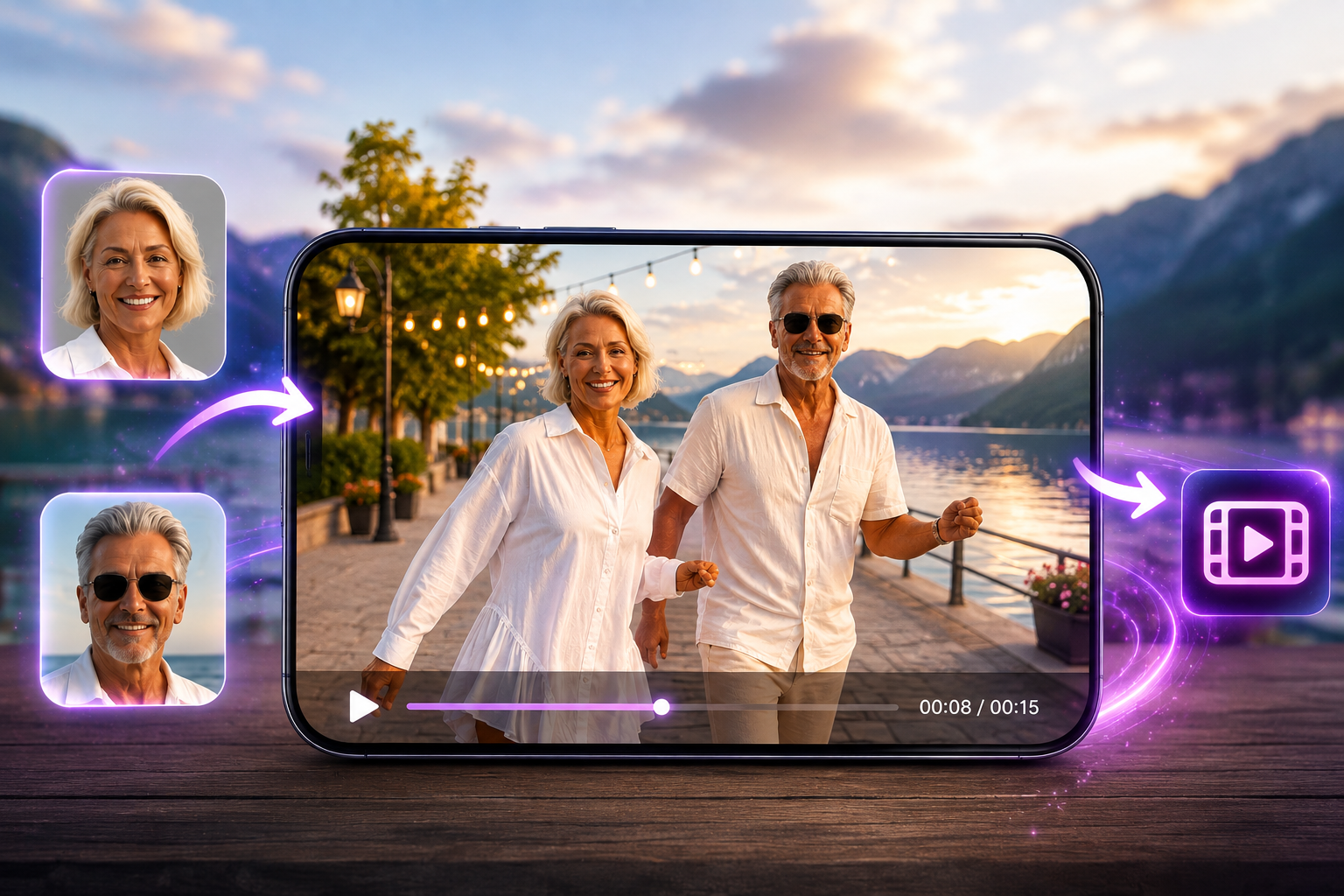
The AI photo to video process works by predicting how each body part would move through a chosen dance style. It fills in the frames between poses, which is the same idea as animation cels, except the AI generates hundreds of them automatically. Try ReelMe AI
The output is not a filter layered over your photo. It is a rendered video with actual motion, timed to a beat. Keep that distinction in mind when you choose your source image - body position matters more than background. Reelme.Art
How to Turn a Photo into a Dance Reel
Pick Your Photo
Open ReelMe AI and tap Create on the home screen. You will see a prompt to upload a photo from your camera roll. The app works best with a single person, visible from the waist up, facing the camera.
Avoid group shots. The AI reads one body as its reference point, so two people in frame confuse the motion output. A plain or simple background also helps the render stay clean.
Once you upload, choose a dance style from the menu. Tap Generate and wait about 30 seconds. The app turns your still image into AI video from photos by predicting how that specific pose would move to the beat.
Export and Share
When the preview plays, tap Save to Camera Roll to keep the file. Tap Share to send it directly to Instagram Reels or TikTok. If you haven't downloaded the app yet, download the app takes you straight to the App Store listing.
What Makes a Dance Reel Perform Well
Run through this checklist before you hit Post.
- The subject's face is fully visible, not cropped or shadowed.
- The photo background is plain or uncluttered.
- Motion looks natural from head to feet, no frozen limbs.
- Audio syncs to the first beat, not mid-bar.
- The clip is under 15 seconds for an AI video generator for Instagram Reels loop.
- The AI dance generator output has no visible glitch frames.
- The exported file is 1080×1920, vertical format.
Common Mistakes and How to Fix Them
These fixes apply to the problems most creators hit the first time they make reels with AI.
- Blurry output: Your source photo was low resolution. Use a photo taken in good daylight at full camera resolution.
- Frozen arms or stiff legs: The subject was cut off at the edges. Reframe so the full body fits inside the photo before uploading.
- Audio starts mid-beat: Trim your audio clip to begin exactly on beat one before you attach it.
- Glitch frames near the end: Export again. Choose MP4, not GIF.
You Can Now Turn Any Still Photo into a Moving Dance Reel. A photo that once sat idle in your camera roll can now move, dance, and land on someone's feed within minutes.
Open ReelMe AI, pick a clean photo, and give it a try.
FAQs
Why does my dance reel look stiff even with a clear photo?
The subject's pose in the source photo may be too rigid. ReelMe AI maps movement onto body points, so a relaxed, natural stance produces smoother motion.
What happens if the subject is cropped below the waist?
The generator needs waist-up visibility to map hips and limbs correctly. A tighter crop leaves key body points unmapped, causing incomplete or frozen movement in the output.