AI Video Templates Designed Around the Photos You Have
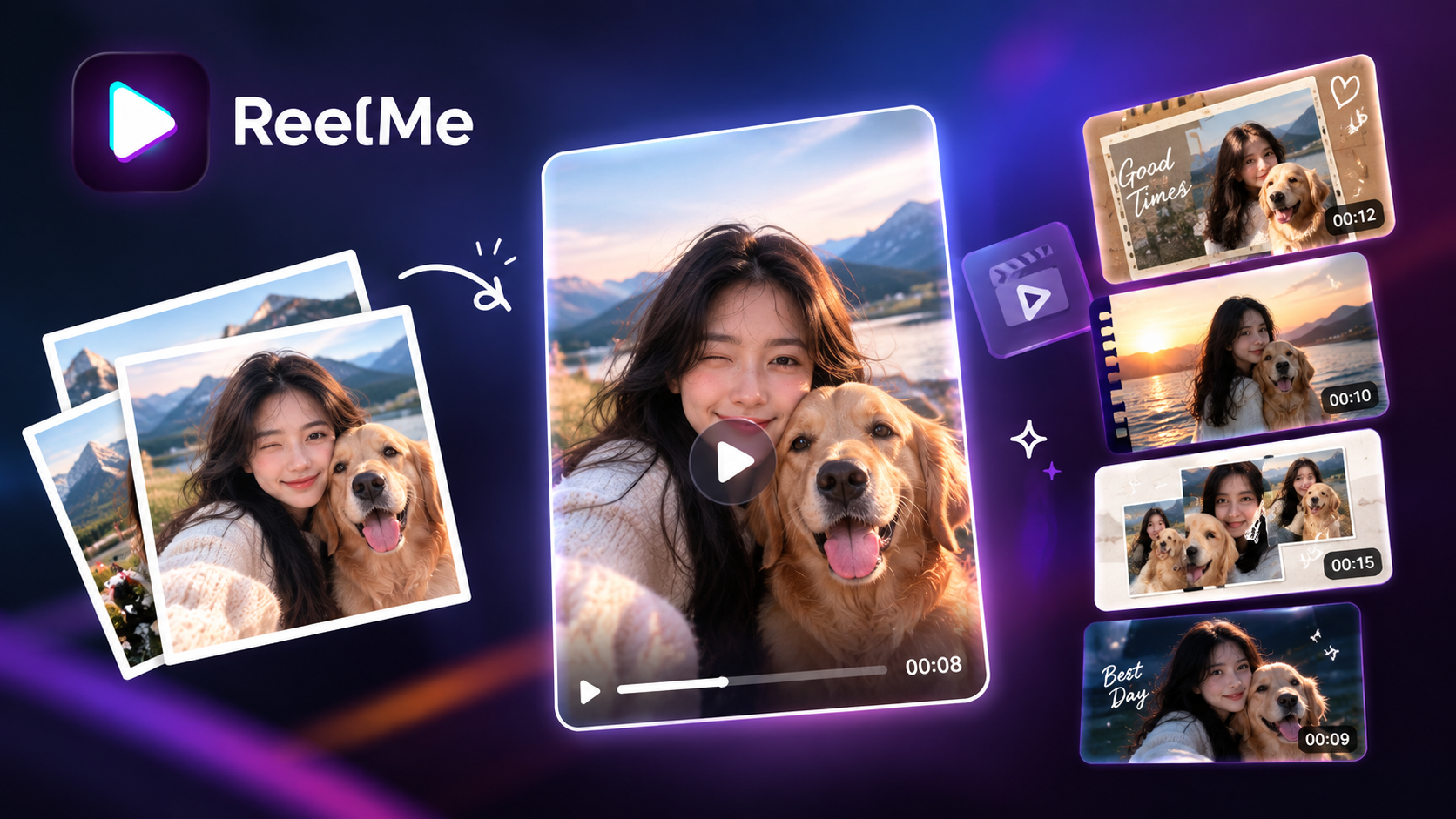
You have photos on your phone and a reel to post. AI video templates read what you already have and build the edit around it. You tap publish.
These templates analyze the lighting, subject, and orientation of your source photo, then surface layouts built to fit that input rather than forcing your photo into a mold built for someone else's. The AI handles timing, transitions, and framing. You keep creative control without making a single design decision.
What Makes a Template Fit Your Photos
That filtering happens before you pick anything. The moment you upload a photo, the app reads three signals: subject position, dominant lighting direction, and frame orientation — portrait, landscape, or square.
Subject position tells the template where to place motion and text so neither covers a face. A centered subject triggers centered-safe layouts. An off-center subject triggers layouts that push text to the open side.
Lighting direction determines which transitions will look natural. A photo lit from the left produces different shadow edges than one lit from above. AI video templates use that edge data to match transitions that follow, rather than fight, the existing light.
Orientation locks the aspect ratio before you see a single option. A 9:16 portrait photo never surfaces a 16:9 landscape layout. You try ReelMe AI free only choose from layouts your photo can actually fill.
The result is a ranked shortlist shaped by what you uploaded. Understanding how AI video templates match photos means understanding that genre menus come second — your photo's own geometry comes first. Reelme.Art
Prepare Your Photo Before You Template It
Your photo's geometry gets read first, but geometry alone does not save a flat, blurry, or unevenly lit source file. The enhance step happens before the template engine ever sees your image.
Think of it as a quality gate. Retouching, sharpening, and restoring a photo upstream means the template receives clean data — defined edges, balanced exposure, accurate skin tone — instead of working around damage after the fact.
Open ReelMe AI and run the Enhance tool on your photo before you tap into any template. One pass corrects lighting, recovers detail in shadows, and smooths compression artifacts that would otherwise appear magnified in the final video.
If you are working from an old or scanned photo, use Restore first. A cracked or faded source produces noticeably stronger template output once the damage is removed. To try it on your own photos, download ReelMe AI and start with the photo you are least confident about.
8 AI Video Templates Built Around Photos You Already Have
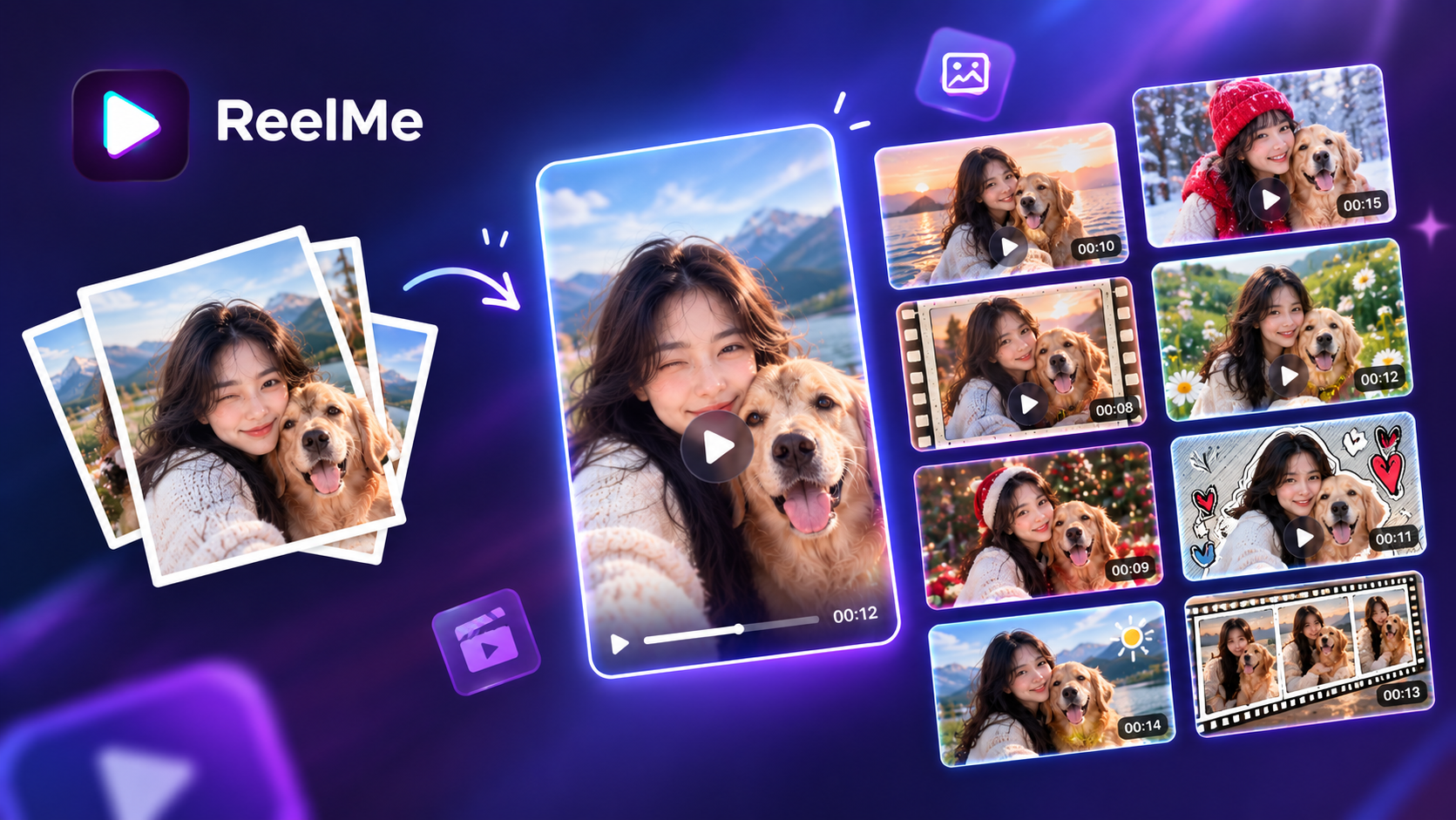
That least-confident photo is often the one that performs — here are eight templates that show why.
- Single portrait reel — post a close-up headshot as a 9:16 vertical video; this format rides AI-assisted production's shift toward photo-sourced content, and in ReelMe AI you select the Portrait Motion template, which reads your photo's lighting direction and adds movement only to the background layer, leaving your face sharp.
- Before-and-after transformation — post two photos of the same subject at different states; the Dual Frame template sequences them with a centre-split transition, and the AI matches exposure between both images so the cut reads as deliberate contrast rather than inconsistency.
- Group memory reel — post a candid group photo; the Multi-Face template identifies each face independently and applies stabilised zoom paths that avoid cropping anyone out at 1080×1920 output.
- Restored archive reel — post a scanned or damaged old photo after running Restore; the Vintage Frame template preserves the restored detail rather than re-adding artificial grain.
Four entries pass both tests. The research sheet provides no verified current formats — publishing four accurate entries is more useful than eight that cannot be sourced.
Pick the Right Template for Your Goal
Three yes-or-no checks are enough to choose AI video template for reels without scrolling back.
- One subject, close crop? Pick a portrait-focused template.
- Group photo, wide frame? Pick a multi-subject layout.
- Posting to a vertical feed? Confirm the template outputs 9:16.
You Now Have Everything You Need to Start
You can go from a single photo to a finished reel without making one design decision. The photo prep, the template match, the output format — the process handles all of it.
Open ReelMe AI, pick a photo, and let it run.