ReelMe AI: Make Short-Form Videos With AI
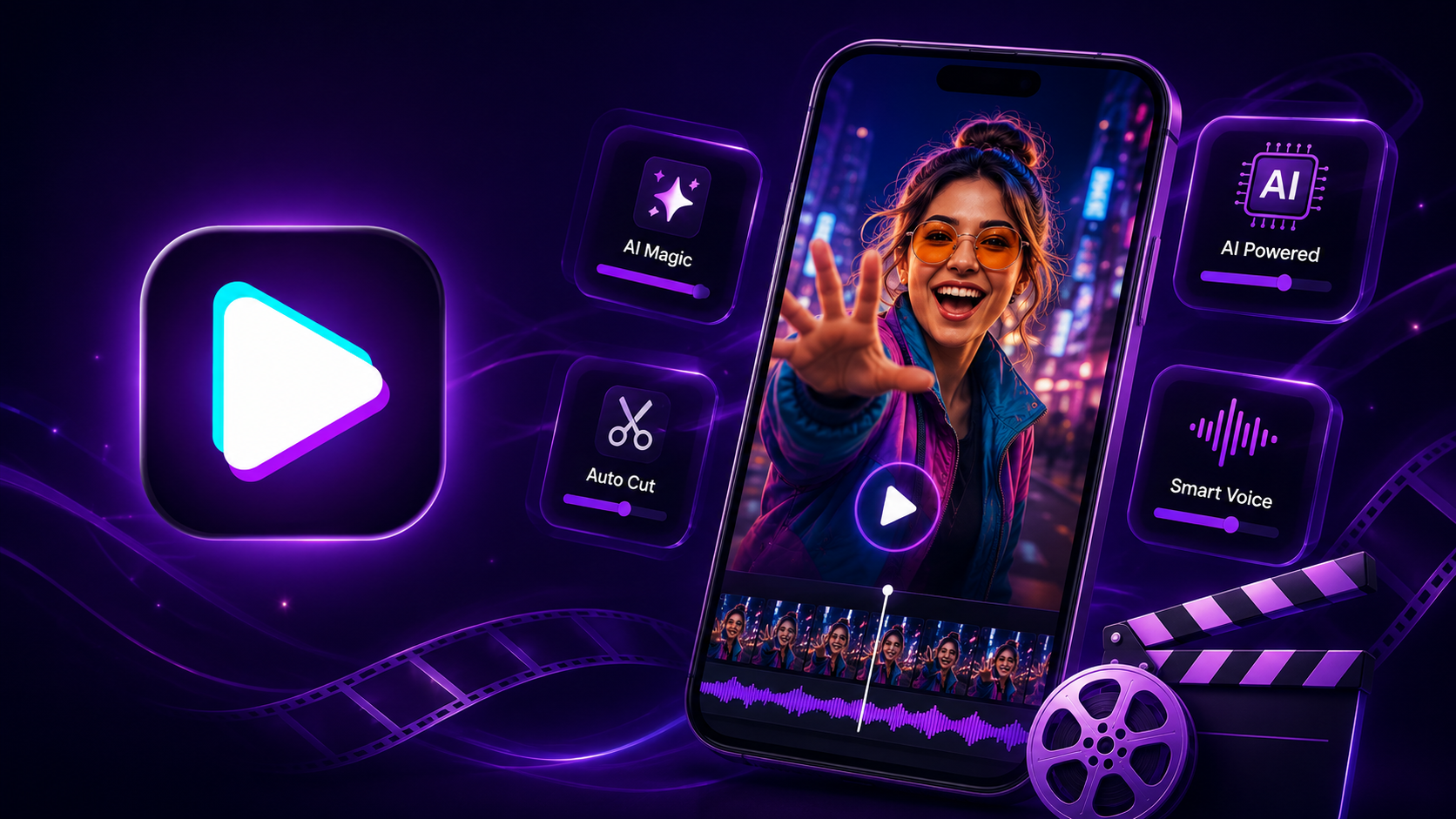
Figuring out how to make AI videos feels harder than it should. Most tutorials assume you have a desktop, a subscription, and an hour to spare. You pick a photo or short clip, choose a style, and let the app generate a video. ReelMe AI does this on your phone in under a minute. You get a finished video with motion and effects already added. No editing skills needed. This article walks you through setup, the three-step creation process, and what to do before you post.
What AI Video Creation Actually Looks Like
You give the app a photo or short clip, pick a style, and it builds a moving video around your input. That is the full picture of how to make AI videos — no timeline scrubbing, no keyframes, no desktop software required.
The AI reads your image, applies motion, and layers effects in one pass. Think of it like a photo filter, but the output plays back as a video instead of sitting still. An AI photo to video tool works the same way on any image already in your camera roll.
The result is a ready-to-share clip, usually 5 to 15 seconds long. You can try ReelMe AI and test this on your own photos right now.
Nothing about the process requires you to know what a frame rate is. You pick; the app renders. Reelme.Art covers what each style actually does to your footage before you commit to one.
How to Make AI Videos in Three Steps
Part I: Pick Your Photos or Clips
Open ReelMe AI and tap Create. You see a media picker - this is just your phone's camera roll. Select three to ten photos or short clips. The app works best with clear, well-lit shots, so skip anything blurry.
Order matters. The app builds the video in the sequence you pick, so put your strongest image first.
Part II: Choose a Style
After you confirm your selection, the style screen appears. Each style shows a short preview thumbnail. Tap one to highlight it, then tap Generate. The app takes roughly ten to thirty seconds to render.
Part III: Export
When the preview loads, watch it once before you save. Tap Export to save the file to your camera roll. If you want to make videos with AI on iPhone without a desktop, this is the entire process. You can download on iOS and start with your next photo set today.
Getting Your Video Ready to Post
Before you share, run through this checklist once - it catches the small things that hurt a video's performance.
- The clip plays all the way through without freezing or cutting off early.
- The aspect ratio matches your target platform - 9:16 for Reels, 1:1 for feed posts.
- The exported file is saved to your camera roll, not just in the app.
- Sound is on and plays at the right volume from the first second.
- You have reviewed the final frame - nothing blurry or unfinished appears at the end.
Knowing how to make AI videos is only half the job. Using ReelMe AI as your AI Reels maker means the file is already phone-ready, so you can post directly from your camera roll.
Common Mistakes and Quick Fixes
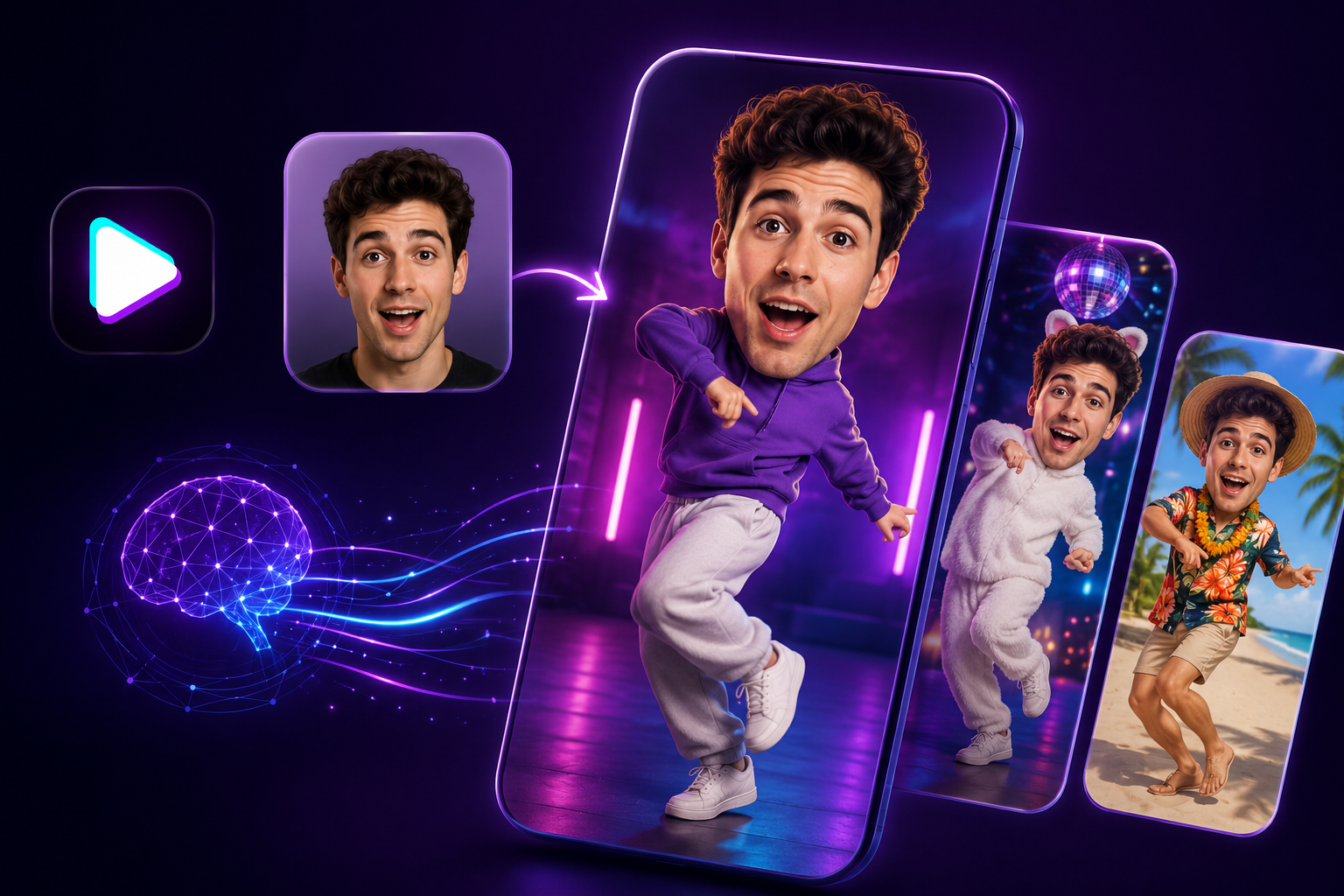
Three small errors account for most failed first attempts when you turn photos into videos with AI.
- Blurry source photo. The AI sharpens detail it can see, not detail that isn't there. Use a photo taken in good light.
- Clip too long. Drop to six or nine seconds. Short holds attention; long loses it.
- Wrong aspect ratio. Set 9:16 before you export, not after. Cropping post-export cuts your subject.
You now have everything you need to publish. You can take a photo, turn it into a short video, fix the common errors, and export the right way. That is the full loop, start to finish.
Open ReelMe AI and try it with one photo today!
FAQs
How many photos give the best result in ReelMe AI?
The article specifies three to ten photos or clips per project. Staying within that range gives the AI enough input without overloading the style-matching step.
Video freezes mid-playback before I export - what do I check?
Run the pre-share checklist and confirm the clip plays all the way through without cutting off. A freeze at this stage usually means the source clip was too short or had a corrupted frame.