
Course · Beginner
AI Videos That Don't Look AI.
Pick the right model, move the camera and keep one face, so your clips look filmed, not generated.
14 lessons29 minFree
Lessons.
- 01
 Lesson 1AI Video BasicsWelcome to Phase 4. This is where your images start to move.3:43Start
- 02
 Lesson 2Which Video Models To UseDon't ask "which model is best?" Ask "what am I making?" Every model in ReelMe has a job it does better than the rest.1:00
- 03
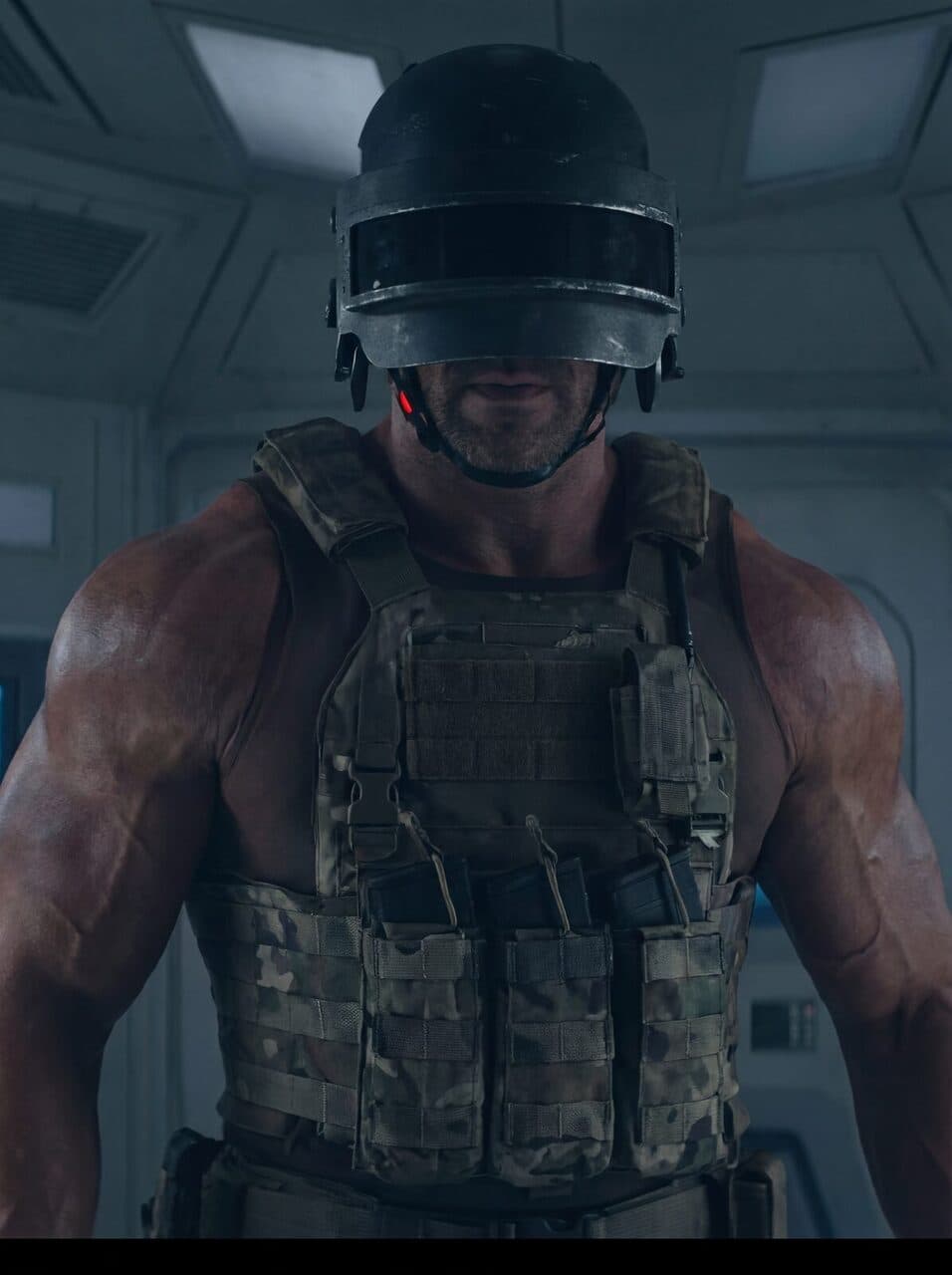 Lesson 3Kling O3 Pro & Multi-Shot ScenesKling O3 Pro is one of the most cinematic models in ReelMe: smooth movement, strong emotion, 5 to 15 seconds per clip, with sound. You'll find it in the mode…6:00
- 04
 Lesson 4Seedance: Time-Sequence PromptsSeedance is the strongest video model in ReelMe for movement, acting and effects. You can use Seedance 2.0 (plus its cheaper Fast and Mini versions) and Seed…4:00
- 05
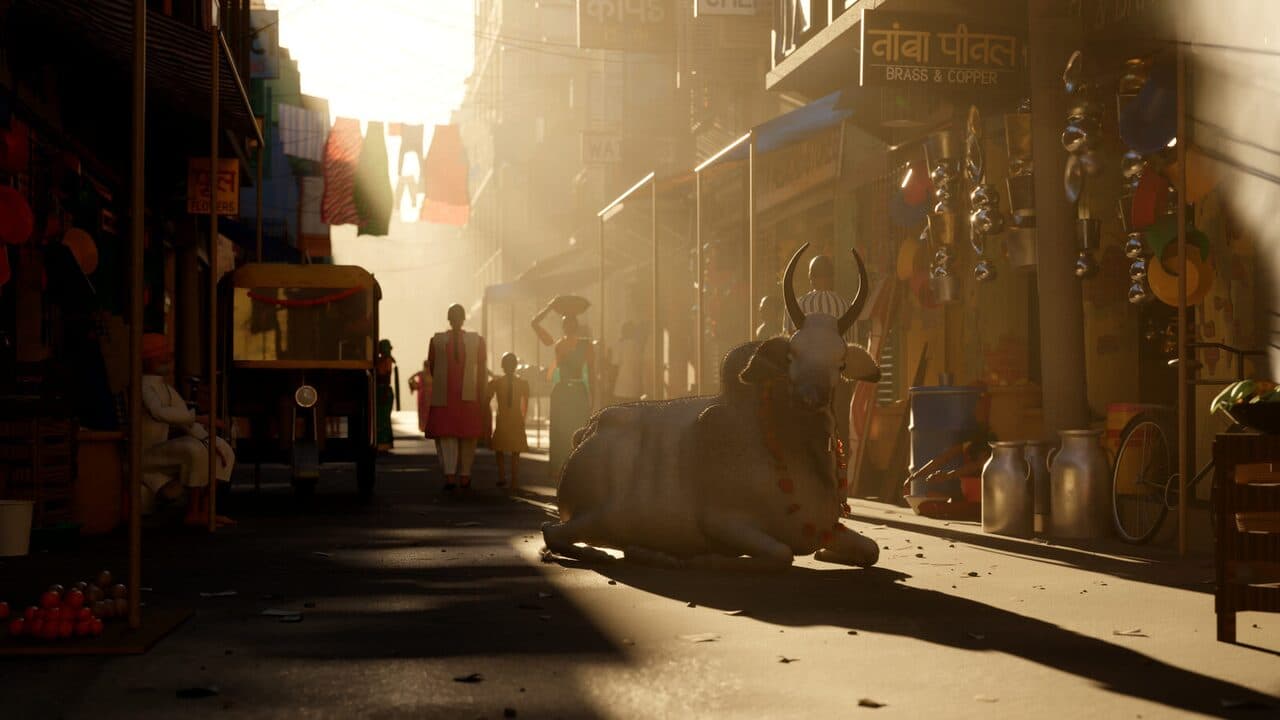 Lesson 5AI Video Editing (Gemini Omni Flash vs Seedance)AI video editing means changing what's inside a clip you already have: the weather, an outfit, an object, even the camera angle. In ReelMe it lives in the Ed…2:00
- 06
 Lesson 6Camera Movement GuideIf you don't tell the model how the camera moves, it decides for you, and it usually picks the same slow sideways drift. This lesson takes that decision back…2:00
- 07
 Lesson 7AI Lip-Sync TestWhich model makes a person actually talk? We ran a fair test in ReelMe: the same face, the same framing, the same line, on four models. Watch them side by side.2:00
- 08
 Lesson 8Removing the 'AI' LookAI footage often comes out too clean: punchy contrast, perfect colour, a camera that never moves. Real phone footage is softer, flatter and a little shaky. F…1:00
- 09
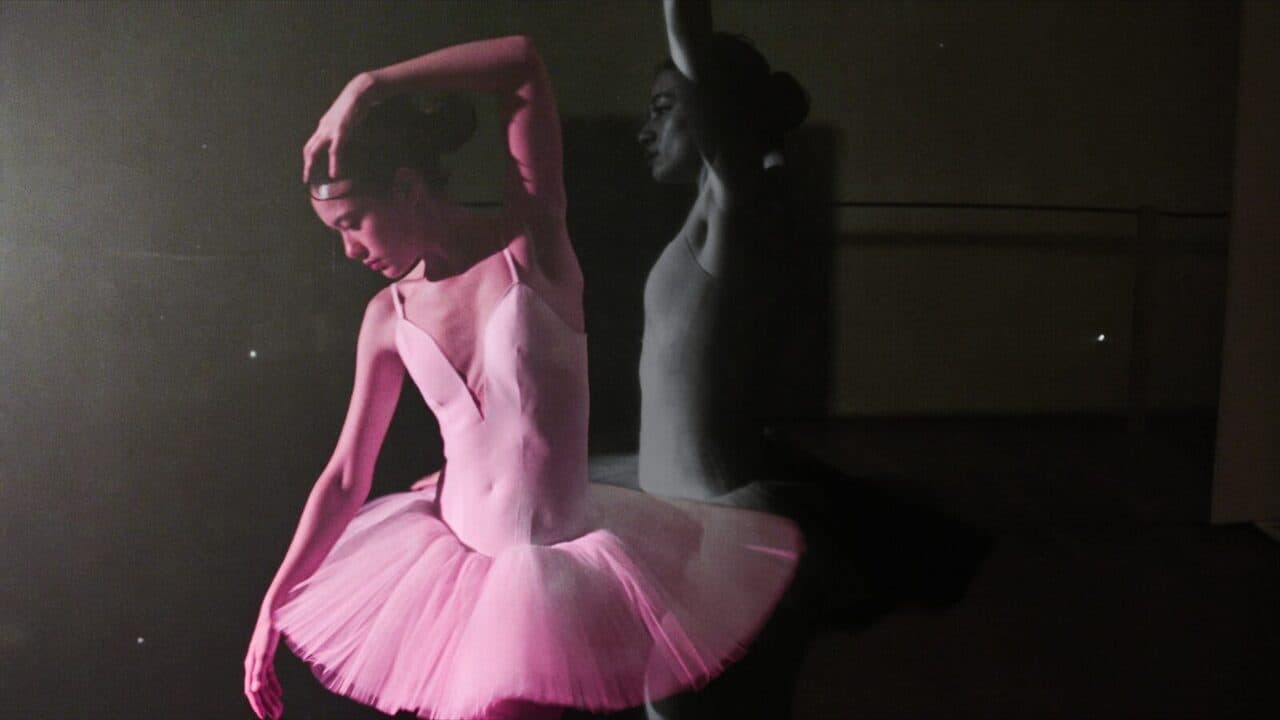 Lesson 9Kling Motion ControlMotion Control moves any character exactly like the person in a video you give it. One clip for the movement, one image for who it should look like. In ReelM…1:00
- 10
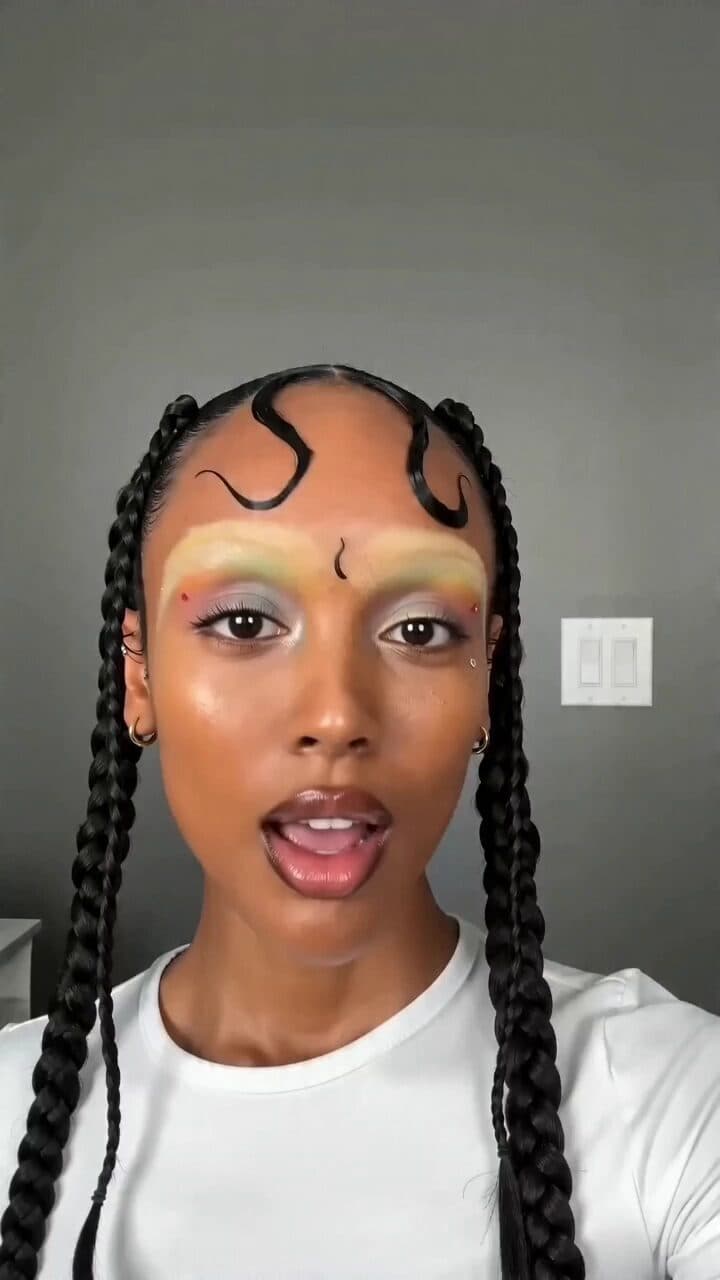 Lesson 10Consistent Character VoicesYour character's face stays the same across shots. Now the voice has to as well. There are two ways to do it in ReelMe, and the second one never fails.0:23
- 11
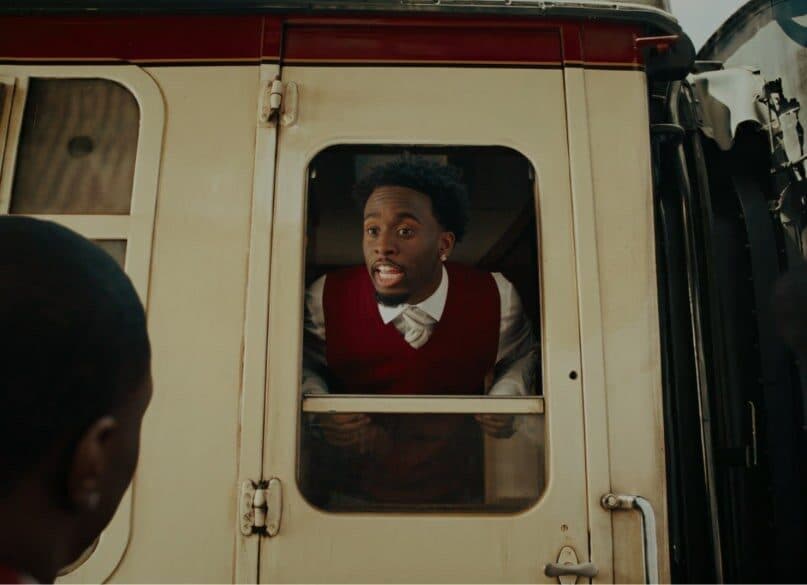 Lesson 11Editing in the ReelMe AI EditorGenerate on the canvas, edit in the AI Editor. Open it from AI Editor in the sidebar: your latest project opens straight in the editor, and every clip, image…3:00
- 12
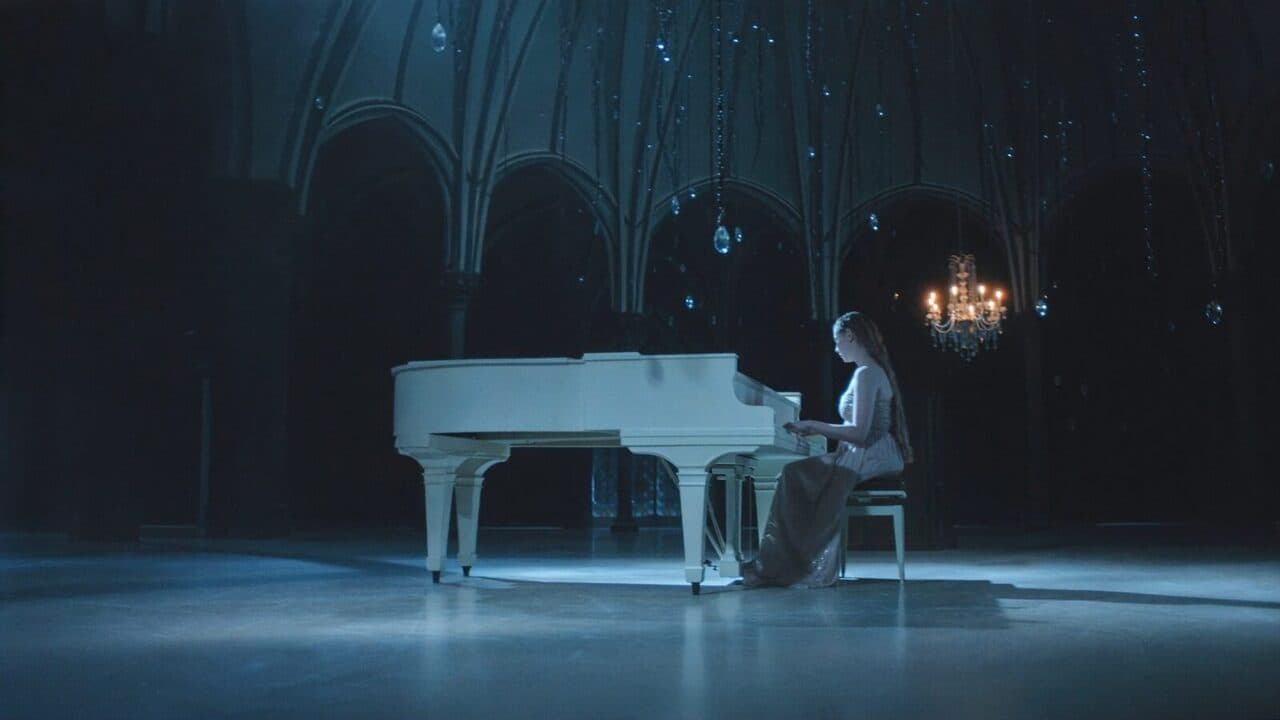 Lesson 12Voice-overs & Sound EffectsVisuals carry the idea. Sound makes it feel real. ReelMe has the top audio models built in, so you don't need a separate subscription: it all runs on your Re…1:00
- 13
 Lesson 13Phase 4 Summary & HomeworkHuge work. Your still images now move, act, talk and sound like real scenes. That's the hardest jump in AI video, and you just made it.1:00
- 14
 Lesson 14ResourcesEverything from Phase 4 in one place. Bookmark this page.1:00