



Must-have
Consistent Characters
Lock one character and put them in any scene, in stills and in video, without the face drifting.
ReelMe Academy
3 lessons13 minBeginnerFreeLearn free nowPick the right model, move the camera and keep one face, so your clips look filmed, not generated.
 By ReelMe Academy team

reelme.ai/academy/c/ai-videos
Craft stunning AI videos
Last updated Nov 17, 2026
Finish every lesson to unlock
ReelMe Academy · free course · 14 lessons · from still image to finished video
✅ Taught inside ReelMe, the AI studio in your browser: Video, the canvas and the AI Editor in one place.
✅ Side by side tests made in ReelMe for the course, like the same face saying the same line on 4 models.
✅ A camera guide with more than 30 camera moves, what each one does and how to ask for it.
🚨 Why start today: AI video is not one perfect prompt, it is the right input for the result you want. Learn the inputs once and every clip after that looks filmed, not generated.
✅ Pick the input: plain text, a start image, a start and end frame, or a pack of references plus a voice line
✅ Choose the right video model for each shot
✅ Kling O3 Pro and multi-shot scenes, 5 to 15 seconds with sound
✅ Seedance time-sequence prompts: beats by the second, with Seedance 2.5 running up to 30 seconds at 1080p
✅ Edit a clip you already have: Gemini Omni Flash 1.1 vs Seedance 2.5 Edit for outfit, weather or objects
✅ Move the camera on purpose instead of the default slow drift
✅ Lip-sync that works: the same line tested on 4 models
✅ Remove the AI look: the Realism Lock in the prompt, then a softer, flatter grade in the AI Editor
✅ Kling Motion Control: one clip for the movement, one image for who it should look like
✅ Keep a character's voice the same across shots, two ways
✅ Cut in the ReelMe AI Editor, then add voice-overs and sound effects with ElevenLabs v4 or MiniMax Speech 2.8 HD
🎁 The Phase 4 resources page: camera words and the Style & camera shortcut that writes the move into your prompt
🎁 Real side by side runs made in ReelMe for the lessons
🎁 13 short homework tasks, ending with a 15 to 30 second video with sound from your own images
For beginners who made a first AI image and want it to move. No editing experience: every step happens inside ReelMe and each lesson shows what to press.
❌ Clips that scream "AI": too clean, too sharp, a camera that never moves
❌ A face or a voice that changes between shots
❌ The same slow sideways drift in every clip
❌ Regenerating a whole clip to fix one detail
If your clips still look generated, start with lesson 1.
⚡ Start lesson 1 now. New here? ReelMe is an AI studio in your browser that makes pictures and videos from a prompt and your reference images. Open reelme.ai, sign in with a free account, then start lesson 1 on this page. In most lessons the prompt is prepared right below the video: press Try it and ReelMe opens the Video page with it filled. In lesson 1 the ready prompt sits in the lesson text: press Open it in ReelMe, prompt filled in and ReelMe opens the Video page on Seedance 2.0 Mini with the prompt in place.
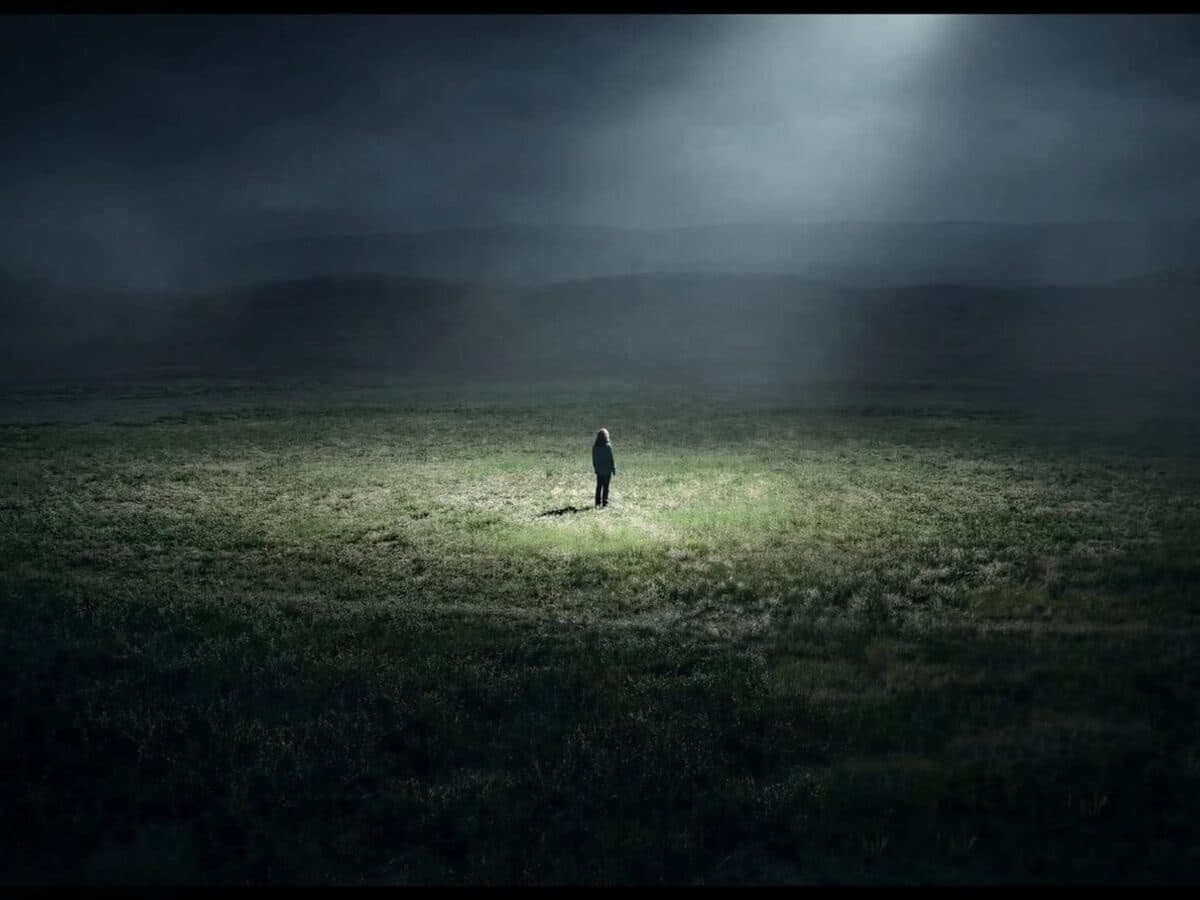
Write a prompt that holds a scene
Subject, motion, camera, light.
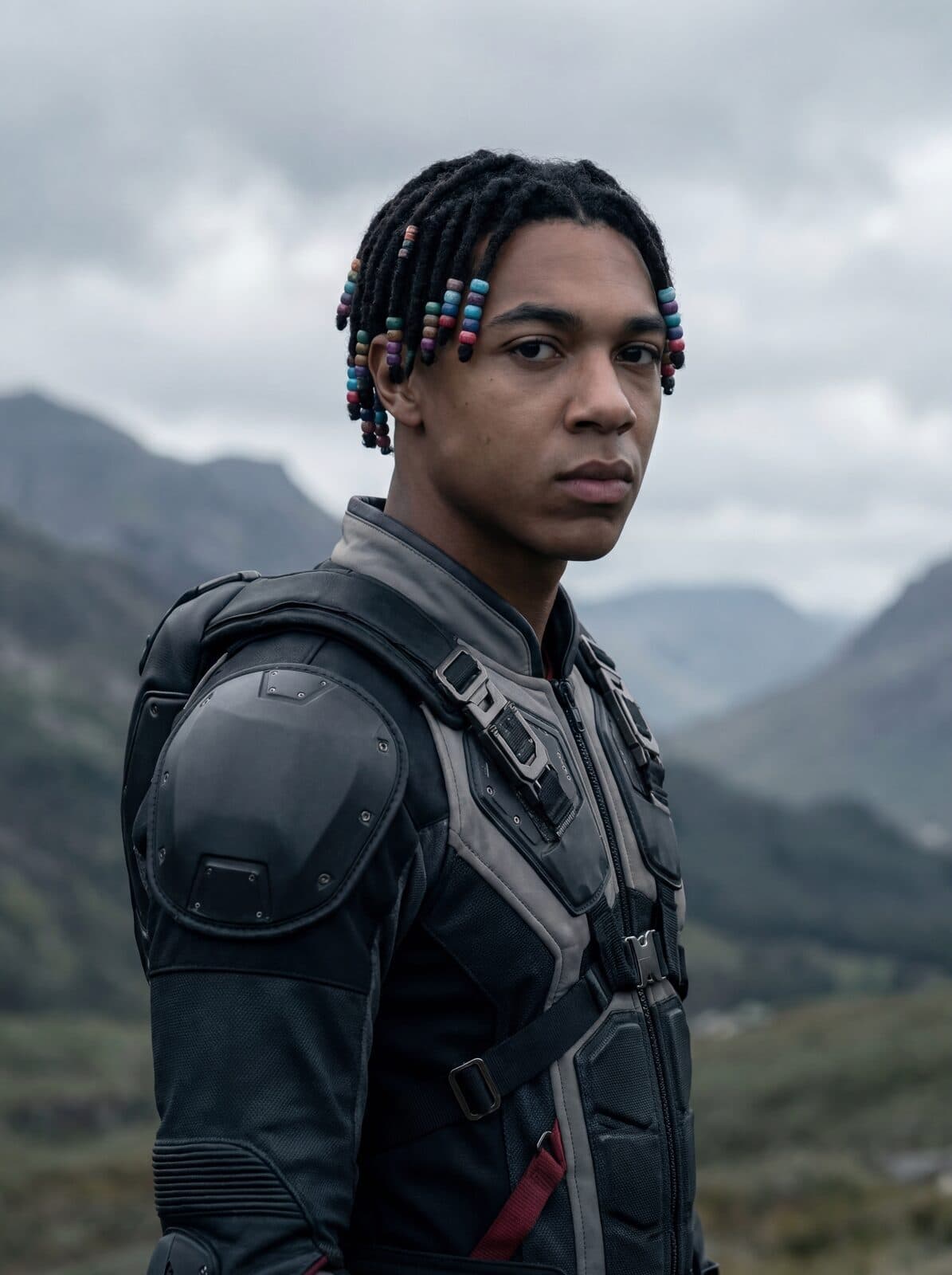
Keep a character the same across shots
Reference images so the face and outfit never drift.
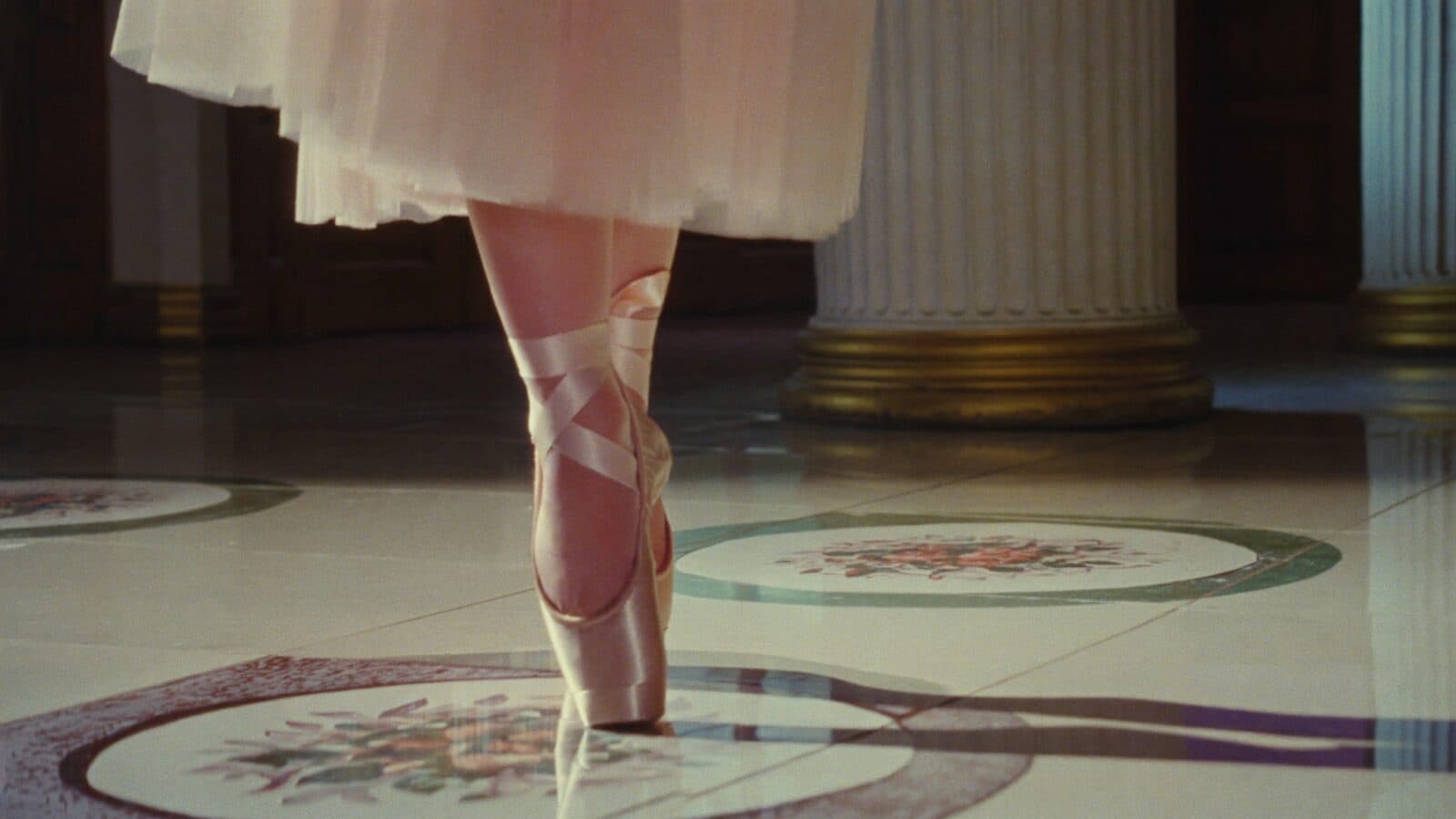
Export a short clip ready to post
Vertical, edited and with sound, straight from ReelMe.
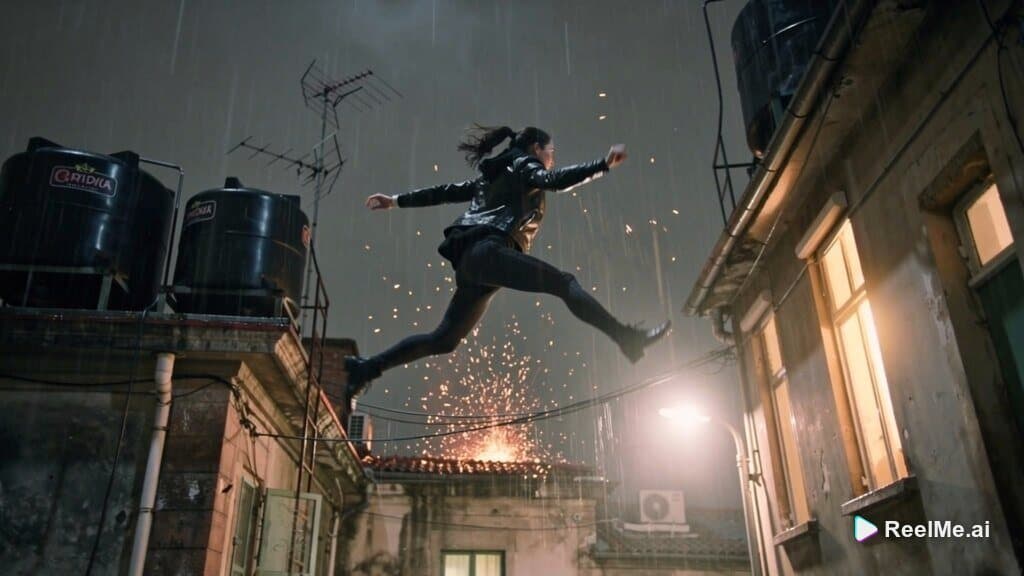
A voice that stays the same
Two ways to keep one character's voice across every clip, tested in ReelMe.
Yes. Watching every lesson and reading the guides is free. Generating in ReelMe uses your credits, and you see the cost in ReelMe before you run anything.
ReelMe is an AI studio in your browser that makes pictures and videos from a prompt and your reference images. Sign in at https://reelme.ai with a free account; nothing to install.
Seedance 2.0, Seedance 2.5, Kling O3 Pro, Gemini Omni Flash, MiniMax H3 Max, Kling 3.0 Standard Motion Control, AI Editor and Text to Speech, in ReelMe Video and Canvas. A lesson names the model it uses next to its prompt.
13 of the 14 lessons have a short task, from your first 5-second clip to a 15 to 30 second video with sound. Submit your results on the lesson and they post to the course community.
Finish every lesson and the certificate unlocks on this page. It is free, with a link you can share.
Yes. Lessons, homework and the community all work on mobile.
No. Every step happens inside ReelMe, and each lesson shows exactly what to press. The cut, music and captions happen in the AI Editor.
Add the Realism Lock to the end of your prompt, give the camera a move, and soften the contrast in the AI Editor. Lesson "Removing the AI look" shows each step.
Lock one character and put them in any scene, in stills and in video, without the face drifting.
ReelMe Academy
3 lessons13 minBeginnerFreeLearn free now
Know which video model to use before you spend a credit.
ReelMe Academy
Tutorial2 lessons7 minBeginnerFreeLearn free now
Make your first AI image and your first AI video in ReelMe, even if you have never written a prompt.
ReelMe Academy
10 lessons24 minBeginnerFreeLearn free now