Prompt library19 promptsCamera2 min read

Shot sizes and camera angles

Prompt library · from the ReelMe composer

19 looks with previews: copy a style prompt, add your subject, run it in ReelMe.

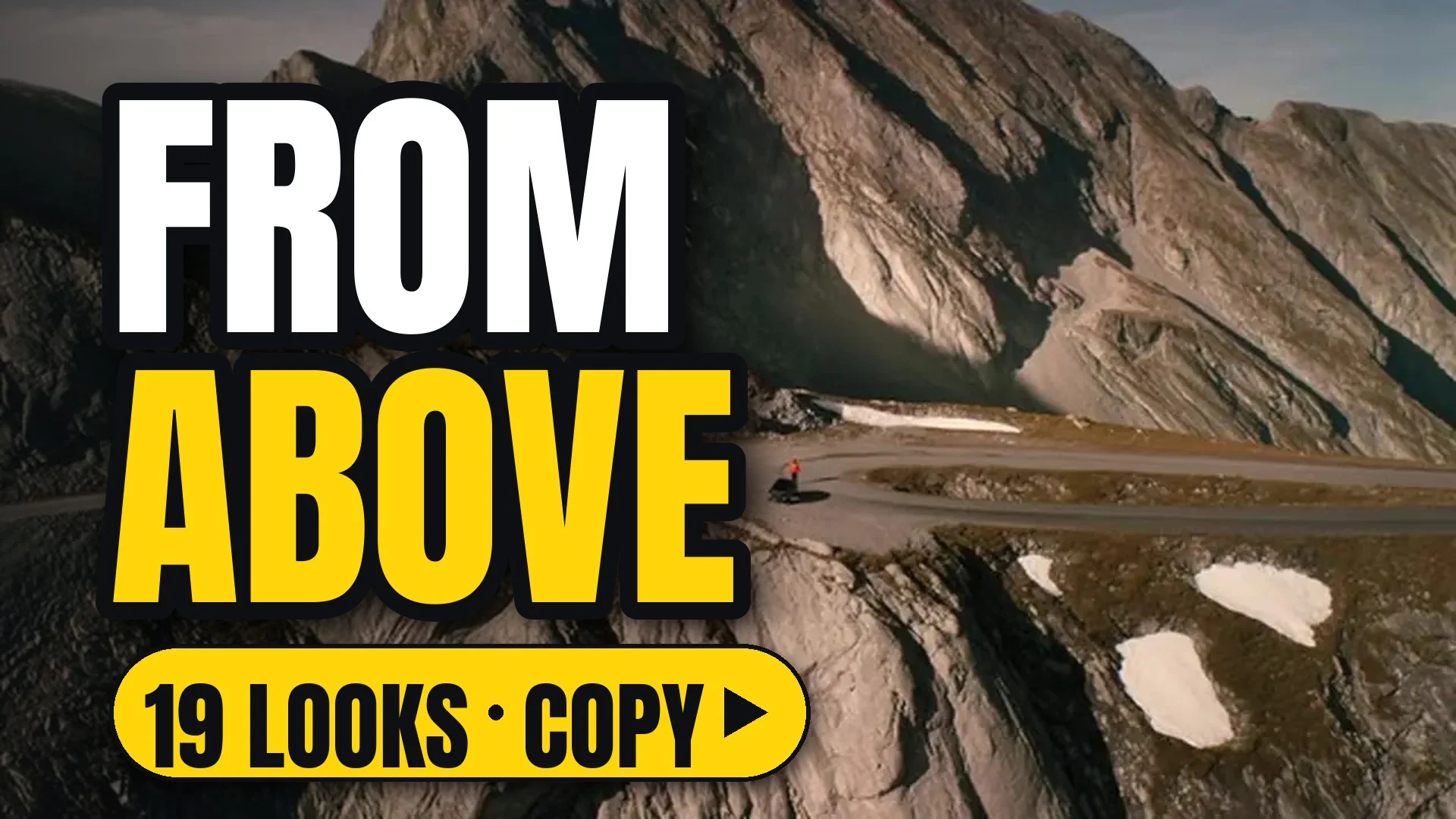
An aerial extreme wide shot of a road winding through jagged rocky mountains

19 looks. How close and from where: from extreme wide to macro, from worm's eye to top down.

How to use

Each look comes as a style prompt that starts with [your subject]. Replace it with what you are making (a perfume bottle on marble, a chef plating pasta, your character), keep the rest, and run it.

Make image or Make video opens ReelMe with the style prompt filled in. One camera move per clip; pair it with a shot size, not another move. Test how close and from where with a quick still in ReelMe Image (reelme.ai/image?aspect=16:9).

19 prompts

Shot size8

  • Extreme wideExtreme wideImageVideo

    [your subject], extreme wide shot, the subject small in a vast space. The surroundings take up almost the whole frame and the subject is a tiny element inside it, read by position rather than detail. NOT a tight crop.

  • WideWideImageVideo

    [your subject], wide shot, the full body with the surroundings. The subject fills about a third of the frame height, with plenty of space around them on every side. NOT cropped at the knees.

  • FullFullImageVideo

    [your subject], full shot, the subject seen head to toe. The subject fills most of the frame height with a small margin above and below. NOT cut off at any edge.

  • MediumMediumImageVideo

    [your subject], medium shot, the subject from the waist up. Gestures and expression both read, with some of the surroundings visible on either side of the subject. NOT a full-length view.

  • Medium close-upMedium close-upImageVideo

    [your subject], medium close-up, the subject from the chest up. Expression is clearly readable while a little of the shoulders and surroundings remains, softly out of focus. NOT a waist-up view.

  • Close-upClose-upImageVideo

    [your subject], close-up, the face fills the frame, the background soft. Detail in skin and expression is sharp, the surroundings reduced to a soft blur at the edges. NOT showing the shoulders and chest.

  • Extreme close-upExtreme close-upImageVideo

    [your subject], extreme close-up on the eyes. The frame is cropped tight across the eyes and brows, every lash, crease and catchlight sharp and filling the width of the frame. NOT the full face.

  • Macro insertMacro insertImageVideo

    [your subject], macro insert of one detail, its texture sharp, the rest implied by blur. A single small part of the subject fills the frame, with surface texture crisp and the surroundings dissolved. NOT a wide context view.

Camera angle11

  • Eye levelEye levelImageVideo

    [your subject], eye-level camera, neutral and honest. The lens sits at the same height as the subject's eye line, vertical lines stay straight and the frame stays level, with no lean up or down. NOT looking up or down.

  • Low angleLow angleImageVideo

    [your subject], low angle from below the eye line, the subject looming larger. The camera looks up, verticals converging upward and the subject rising against what is above. NOT a downward view.

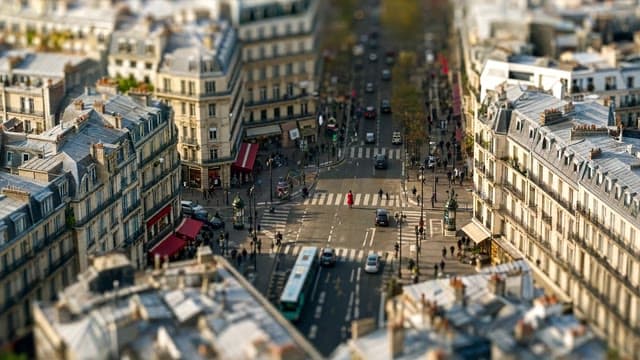
  • High angleHigh angleImageVideo

    [your subject], high angle looking down, the subject smaller in the space. The camera sits well above, the space below filling the frame around the subject. NOT an upward view.

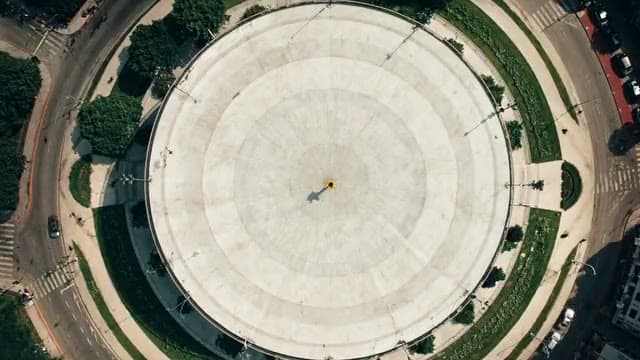
  • Top-downTop-downImageVideo

    [your subject], straight top-down view, a clean graphic layout. The lens points straight down, shapes flattened into a clean plan view with no perspective lean at all. NOT an oblique angle.

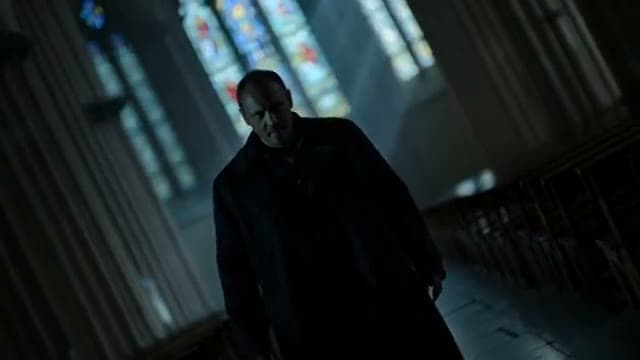
  • Dutch angleDutch angleImageVideo

    [your subject], dutch angle, the horizon tilted, uneasy energy. The camera is rolled about fifteen to twenty degrees, every vertical line leaning diagonally across the frame. NOT a level horizon.

  • Over the shoulderOver the shoulderImageVideo

    [your subjects], over-the-shoulder, the near shoulder soft in the foreground, the other face sharp. The near figure fills one edge of the frame, out of focus, while the subject faces camera across the space. NOT a single isolated figure.

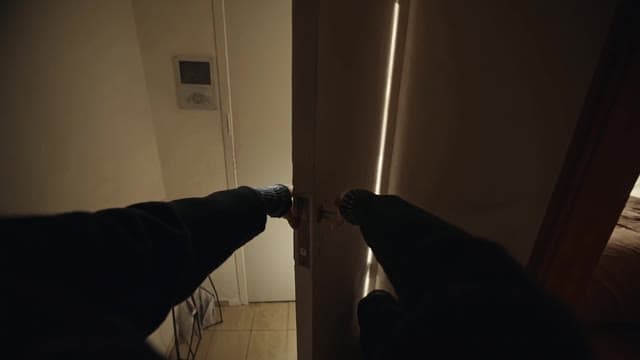
  • POVPOVImageVideo

    [your subject], first-person point of view of the character. The camera stands in for the character's own view, their own hands entering the lower frame as they reach and act. NOT a third-person view.

  • ProfileProfileImageVideo

    [your subject], strict side profile against negative space. The camera sits at exactly ninety degrees to the subject, the subject's outline crisp against a plain field. NOT a three-quarter view.

  • Through foregroundThrough foregroundImageVideo

    [your subject], seen through a soft foreground layer, the subject still readable. The near layer is heavily out of focus across part of the frame, the subject sharp beyond it. NOT an unobstructed view.

  • SymmetricSymmetricImageVideo

    [your subject], centered symmetrical composition, balanced left and right. The subject sits on the central axis, with matching elements mirrored evenly on both sides of the frame. NOT off-centre placement.

  • Two-shotTwo-shotImageVideo

    [your subjects], two-shot, both faces visible, their positions clear. Two figures share the frame side by side or facing each other, both in focus and both expressions readable. NOT one figure alone.

Make it in ReelMe

Got the distance right? Add motion with the same size prompt in ReelMe Video. Keep the size words so the subject stays the same distance from the camera.

Nov 12, 2026

How it works

3 steps

  1. Pick a look

    Choose one of the 19 shot sizes and angles and copy its prompt.

  2. Add your subject

    Replace [your subject] or [your subjects] with what you are making.

  3. Run it in ReelMe

    Paste it into ReelMe Image at reelme.ai/image?aspect=16:9 and generate.

  • Camera · Prompt library · from the ReelMe composer

    73 looks with previews: copy a style prompt, add your subject, run it in ReelMe.

    1. Pick a look: Choose one of the 73 camera and lens looks and copy its prompt.
    2. Add your subject: Replace [your subject] with what you are making; keep the rest.
    3. Run it in ReelMe: Paste it into ReelMe Image at reelme.ai/image?aspect=16:9 and generate.
  • Camera · Prompt library · from the ReelMe composer

    44 looks with previews: copy a style prompt, add your subject, run it in ReelMe.

    1. Pick a look: Choose one of the 44 lens effects and copy its prompt.
    2. Add your subject: Replace [your subject] with what you are making; keep the rest.
    3. Run it in ReelMe: Paste it into ReelMe Video at reelme.ai/video?mode=t2v and generate.
  • Framing

    Prompt library

    Camera · Prompt library · from the ReelMe composer

    60 looks with previews: copy a style prompt, add your subject, run it in ReelMe.

    1. Pick a look: Choose one of the 60 framings and copy its prompt.
    2. Add your subject: Replace [your subject] or [your subjects] with what you are making.
    3. Run it in ReelMe: Paste it into ReelMe Image at reelme.ai/image?aspect=16:9 and generate.

Want it step by step? From Zero to AI Creator